Showing posts with label Linux. Show all posts

Linux Mint 12

lisa_light

The purpose of Linux Mint is to produce a modern, elegant and comfortable operating system which is both powerful and easy to use.

Started in 2006, Linux Mint is now the 4th most widely used home operating system behind Microsoft Windows, Apple Mac OS and Canonical's Ubuntu.

Some of the reasons for the success of Linux Mint are:

  • It works out of the box, with full multimedia support and is extremely easy to use.
  • It's both free of cost and open source.
  • It's community-driven. Users are encouraged to send feedback to the project so that their ideas can be used to improve Linux Mint.
  • Based on Debian and Ubuntu, it provides about 30,000 packages and one of the best software managers.
  • It's safe and reliable. Thanks to a conservative approach to software updates, a unique Update Manager and the robustness of its Linux architecture, Linux Mint requires very little maintenance (no regressions, no antivirus, no anti-spyware...etc).

Machine Tested : EEEPC 1001PX | 2 GB DDR2 | 500 GB HDDstarstarstarstarstar

Download : here

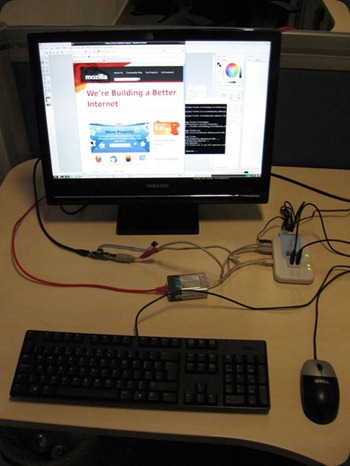
Raspberry Pi running Quake 3

Here’s something to liven up your weekend: a video of the Raspberry Pi running Quake 3. We’re still working on ironing a few kinks out (specifically, there seems to be a library issue which means our framerate, while good, isn’t quite as spectacular as we know it can be; we’re working on it as I post this) – but this is what test boards are for, and we’re making great progress getting the boards running smoothly.

I know some of our forum members are interested in building custom cases for your own Raspberry Pis, and have been asking about the heat that the board generates when it’s working hard. We feel you should be fine with the sort of thermoplastic cases that some of you are hoping to make using 3d printers: the chip doing all the work in this clip was still under body temperature after I’d filmed this demo four times, and feels surprisingly cool to the touch. This is also, of course, great news for power consumption. I hope that some of you can come to one of the conferences we’ll be participating in over the next few months (details will appear here on the blog and on the forums later when we’re confirmed) and have a look for yourselves.

Obviously, the Raspberry Pi isn’t intended as a gaming platform, but it’s very satisfying to let the Broadcom BCM2835 application processor off the leash (yes, I’m allowed to give you the part number now) and see what it can do in this sphere nonetheless. As Eben notes in the clip above, we’re hoping to show you a video of a bunch of us playing Q3 Deathmatch on some networked Raspberry Pis in a few weeks’ time – just because we can.

DSCF1808[1]

Website : http://www.raspberrypi.org/

Fedora 15– Preupgrade or new Instalation ?

Hi all, we back with some tricks, so , our question is simple : Fedora 15– Preupgrade or new Installation ?

fedora-15-desktop

So we have a laptop 1001px with 2 GB ddr2 + 500 GB SATA, and installed Fedora 14 ( more 1 month )

install some packages, vlc, dropbox, openoffice, and others.

Yesterday we decided to Preupgrade to Fedora 15 ( Process during +/- 30m to 1h ) , installed successful.

When we launch the “Shell” and write “Yum Upgrade” we receive the error :


$ update
Loaded plugins: langpacks, presto, refresh-packagekit
http://linux.dropbox.com/fedora/15/repodata/repomd.xml: [Errno 14] HTTP Error404 – Not Found : http://linux.dropbox.com/fedora/15/repodata/repomd.xml
Trying other mirror.
http://linux.dropbox.com/fedora/15/repodata/repomd.xml: [Errno 14] HTTP Error404 – Not Found : http://linux.dropbox.com/fedora/15/repodata/repomd.xml
Trying other mirror.
Error: Cannot retrieve repository metadata (repomd.xml) for repository: Dropbox. Please verify its path and try again

crap Triste , we decided to return fedora 14, we think the problem is Preupgrade + Dropbox ( we understand this )

*****

but we find the solution :

After installing dropbox from the RPM package availble on the site on a new Fedora 15 install, I was unable to use yum without coming across this error:

$ update
Loaded plugins: langpacks, presto, refresh-packagekit
http://linux.dropbox.com/fedora/15/repodata/repomd.xml: [Errno 14] HTTP Error404 – Not Found : http://linux.dropbox.com/fedora/15/repodata/repomd.xml
Trying other mirror.
http://linux.dropbox.com/fedora/15/repodata/repomd.xml: [Errno 14] HTTP Error404 – Not Found : http://linux.dropbox.com/fedora/15/repodata/repomd.xml
Trying other mirror.
Error: Cannot retrieve repository metadata (repomd.xml) for repository: Dropbox. Please verify its path and try again

For some unknown reason dropbox repos dont seem to work past 13 so you’ll need to change the dropbox.repo file from detecting the current release to 13 like so:

Open the dropbox.repo file:

sudo gedit /etc/yum.repos.d/dropbox.repo

Change the baseurl from $relesever to 13 like so:

Original:

[Dropbox]
name=Dropbox Repository
baseurl=http://linux.dropbox.com/fedora/$releasever/
gpgkey=http://linux.dropbox.com/fedora/rpm-public-key.asc

New:

[Dropbox]
name=Dropbox Repository
baseurl=http://linux.dropbox.com/fedora/13/
gpgkey=http://linux.dropbox.com/fedora/rpm-public-key.asc

Save and close and everything should be working, try using sudo yum update to check and the error should have gone away. If not give a reboot a try.

Link : http://alexsleat.co.uk/

*****

Some Days we decided to install Fedora 15 in VirtualBox ( new installation ) , an test YUM Upgrade, now updates useful.

So whats your Rsponse ? PreUpgrade or New Instalation

If you have problems or successful or have solutions , comment to us.

Raspberry Pi – What is this ?

The Raspberry Pi Foundation is a UK registered charity (Registration Number 1129409) which exists to promote the study of computer science and related topics, especially at school level, and to put the fun back into learning computing.

We plan to develop, manufacture and distribute an ultra-low-cost computer, for use in teaching computer programming to children. We expect this computer to have many other applications both in the developed and the developing world.

Our first product is about the size of a USB key, and is designed to plug into a TV or be combined with a touch screen for a low cost tablet. The expected price is $25 for a fully-configured system.

How would you use an ultra-low-cost computer? Do you have open-source educational software we can use? Contact us at info@raspberrypi.org.

Provisional specification:

  • 700MHz ARM11
  • 128MB of SDRAM
  • OpenGL ES 2.0
  • 1080p30 H.264 high-profile decode
  • Composite and HDMI video output
  • USB 2.0
  • SD/MMC/SDIO memory card slot
  • General-purpose I/O
  • Open software (Ubuntu, Iceweasel, KOffice, Python)


ubuntu

Raspberry Pi device running Ubuntu 9.04

pcb

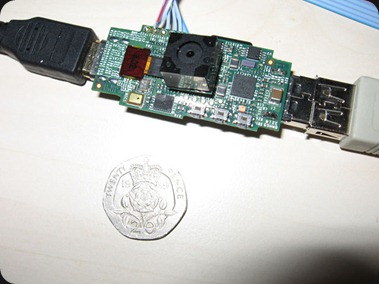
Raspberry Pi device with attached 12MPixel camera module

NetBook – Fast Boot


netbooks

Do you want your netbook fast ?

So first buy more memory : 2GB [ if you have 1GB ]

If your system is Windows XP or Windows 7 Starter Edition , upgrade to Windows 7 Enterprise. [ + 50 % Fast ]


If you want more speed use Linux , its free , just search on “Google.com” , i recommended fedora for EEEpc .


see this example for my upgrade :

When Buy : 1 GB DDR2 / 160 GB HDD  /  Windows XP

Now :

 
Another Example “Windows VS Linux”

Why use Linux ?

Its fast boot and battery during more time, and fast shutdown…. its free

PreUpgrade Fedora 14 to 15beta

fedora-preupgrade

Open Shell and run in “root”

yum update


yum install preupgrade


preupgrade


When program launch , click “Forward” , and click “Display unstable test …” and select “Fedora 15”


This process delay 30m ~ 1h


Screen Fedora 15


Screenshot


The Beta version contains a more refined prior to the latest technologies being developed by the Fedora Project, these technologies are available with greater stability to be re-tested by the community to identify and report errors.


More news of the release of Fedora 15 are:


  • GNOME 3;


  • Systemd;


  • BoxGrinder;


  • Stateful firewall;


  • Maven 3;


  • Python 3.2;


  • Sugar .92;


  • Support boot sector of the disk 4kB;


  • Ecryptfs support in authconfig;


  • Suite robotics.


See the complete list of resources: http://fedoraproject.org/wiki/Releases/15/FeatureList

Make sure Fedora is upgraded

alexandra-franco-tux_fedora

open shell

login in root and write this comand :

yum repolist

Yum – Linux – Some Basics


Yum-Extender-2_2 

yum is software installation tool for Red hat linux and Fedora Linux. It is a complete software management system. Other option is to use up2date utility. yum is designed to use over network/internet. It does not use CDROM to install packages. If you are using fedora you don't have to install it, it is part of fedora itself.
If you don't have yum then download it from project home page yum - Trac
And then install it

Code:

rpm -ivh yup*


Step # 1: Configure yum

You need to edit /etc/yum.conf and modify/add following code to it:


Code:


vi /etc/yum.conf


Append or edit code as follows:


Code:


[base]
name=Fedora Core $releasever - $basearch - Base
baseurl=http://apt.sw.be/fedora/$releasever/en/$basearch/dag
baseurl=http://mirrors.kernel.org/fedora/core/$releasever/$basearch/os


Save the file

Install GPG signature key with rpm command:


Code:


# rpm --import http://dag.wieers.com/packages/RPM-GPG-KEY.dag.txt


and other keys too (if any using above command)

Step # 2 Update your package list:


Code:


# yum check-update


Step # 3 start to use yum

Install a new package called foo


Code:


# yum install foo


To update packages


Code:


# yum update


To update a single package called bar


Code:


# yum update bar


To remove a package called telnet


Code:


# yum remove telnet


To list all packages


Code:


# yum list installed


You can search using grep command


Code:


# yum list installed | grep samba


Display information on a package called foo


Code:


# yum info foo


To display list of packages for which updates are available


Code:


# yum list updates


for example : How Install “OpenOffice”


OpenOffice-Org


1º Open Terminal


2º Write “su root”


3º Write Password of your “root”


4º If Sucessful now write “yum update” – Wait for seconds


5º Now Write “yum groupinstall "Office/Productivity"”


6º Check Steps…


7º Now Open “OpenOffice” in “Office/Productivity”

Translate Website

ShareThis